Sign in
Navigator supports two sign-in methods: magic link (passwordless email) and password.
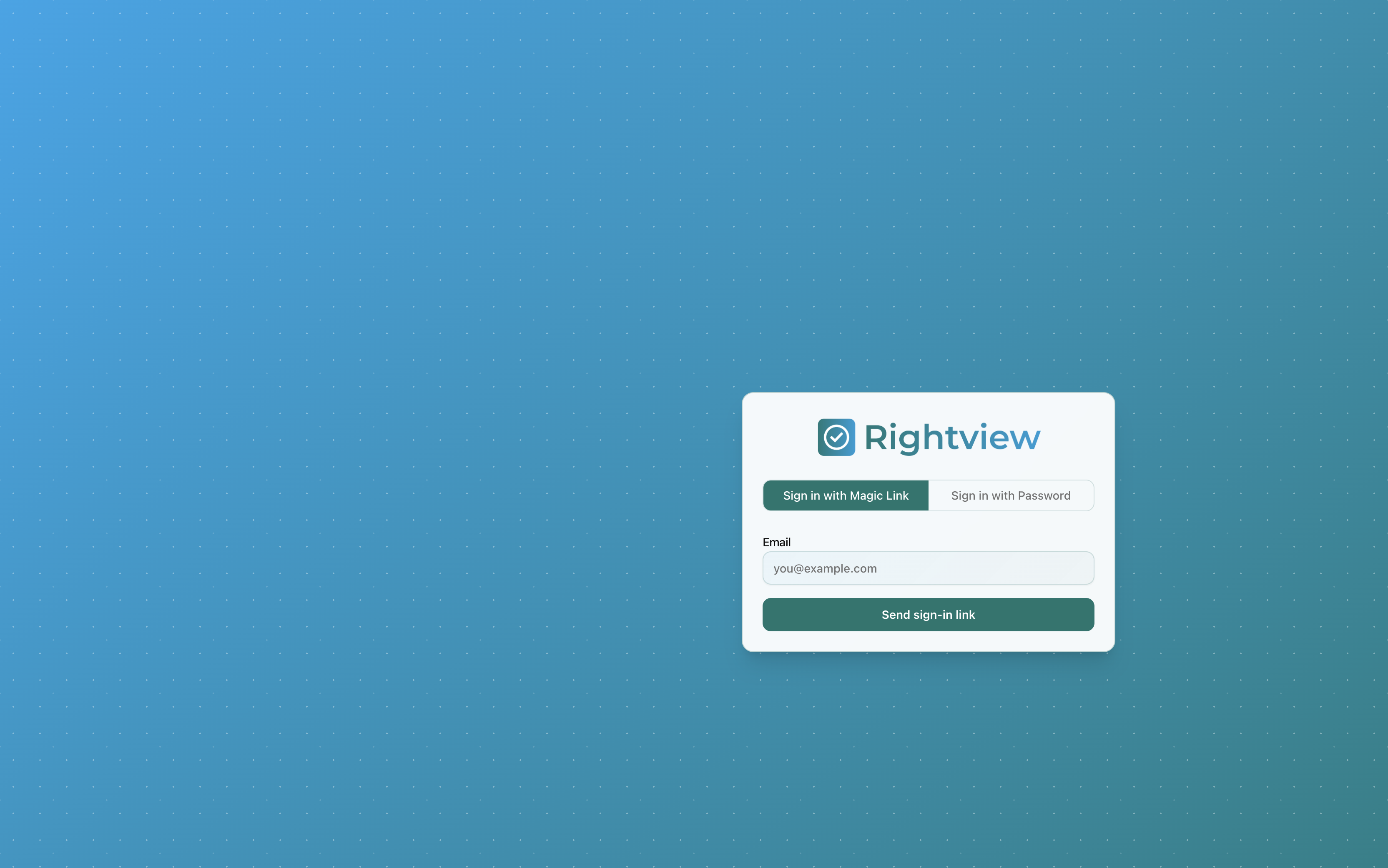
Sign in with a magic link
- Open sites.rightview.ai/login.
- Make sure Sign in with Magic Link is selected.
- Enter your work email address.
- Click Send sign-in link.
- Check your inbox for an email from Rightview Research and click the link. The link expires after a short time; request a new one if it has expired.
If your account was just created, you may receive a welcome email with the same magic-link flow.
Sign in with a password
- On the login page, click Sign in with Password.
- Enter your email and password.
- Click Sign in.
If you forgot your password, click Forgot password?, enter your email, and follow the reset link sent to your inbox.
Privileged accounts need an extra sign-in step. These are administrator, site administrator, site editor, private editor, sponsor administrator, and medical monitor accounts. The step is a 6-digit code from an authenticator app. You enter it after your password or magic link. See Two-factor authentication (MFA) for setup and troubleshooting.
If your sign-in link has expired
A sign-in link works once and expires after a short time. If you open an expired or used link, the page shows Send a new link. Enter your email and click the button. Navigator sends a new link.
If you're asked to set a new password
Passwords periodically expire, and an administrator can require a reset on your account. If either applies, signing in with your old password now shows a Set new password form right on the login page instead of an error - enter and confirm a new password (at least 8 characters, with an uppercase letter, a lowercase letter, and a number) to finish signing in. There's no separate link to hunt for and no need to contact support first.
Session timeout
For security, Navigator signs you out after 60 minutes of inactivity. If this happens, you are redirected to the login page with a short message explaining that your session ended. Sign in again to continue.
If the app looked signed in but actions fail, refresh the page or sign in again - do not stay on a stale screen.
Troubleshooting
| Issue | What to try |
|---|---|
| Magic link email not arriving | Check spam/junk folders. Confirm your email matches the one your admin registered. |
| Link expired | Return to the login page and request a new link. |
| Invalid email or password | Reset your password or contact support@rightview.ai. |